
Creating, editing, duplicating and deleting events
Last reviewed: 14 August 2026 · Documentation version: 1.0 · Applies to: Current Capture Snaps release
Events can be prepared in advance, updated when requirements change, reused as a starting point or removed when they are no longer needed.
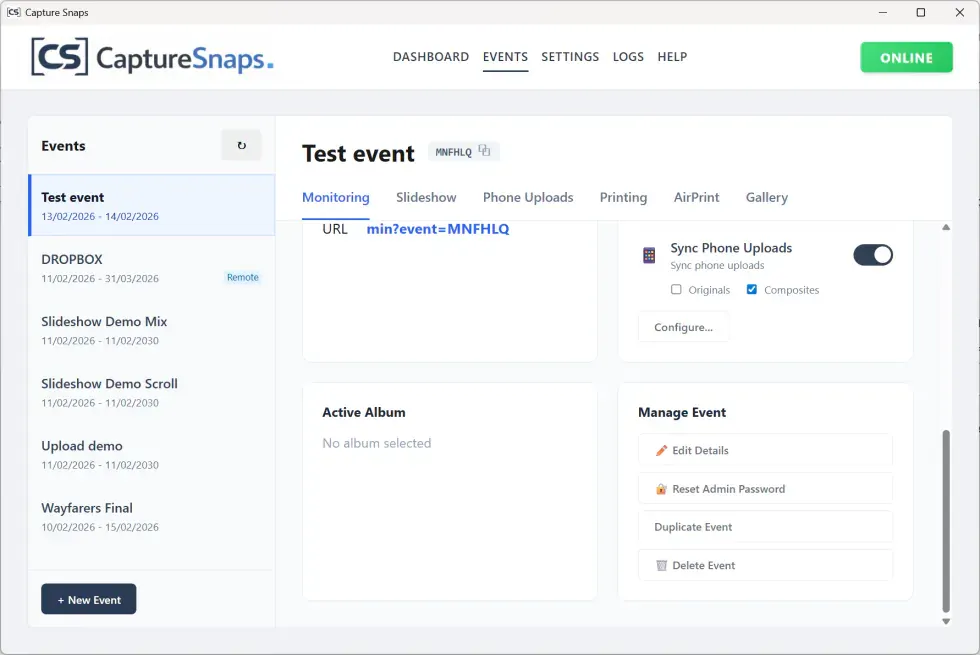
Create an event
Create a new event from the application dashboard, then add its name, date and event code. Configure guest uploads, watch folders, slideshow, printing, moderation and delivery for that specific event.
Edit an event
Open the event from the dashboard and update its settings. Recheck any public links or displayed QR codes after changing identifying details, then upload a test image before going live.
Duplicate an event
Duplicating an existing event is useful when the same client, venue or equipment setup is used repeatedly. Treat the copy as a new event:
- Give it a new name and date.
- Confirm its event code.
- Review all copied branding and delivery settings.
- Test watch folders, uploads and outputs.
Delete an event
Deleting an event removes its event record, configuration, associated upload records, stored media, templates and assets managed through Capture Snaps.
Download anything that must be retained and confirm any third-party delivery has completed before deleting. Data already synced to an external service must be managed within that service.
Read the full Data Deletion Policy before removing live customer data.
Email james@capturesnaps.com and we’ll help you get sorted.