
Creating your first event
Last reviewed: 14 August 2026 · Documentation version: 1.0 · Applies to: Current Capture Snaps release
An event brings your booth photos, guest phone uploads, slideshow, printing and delivery settings together in one place.
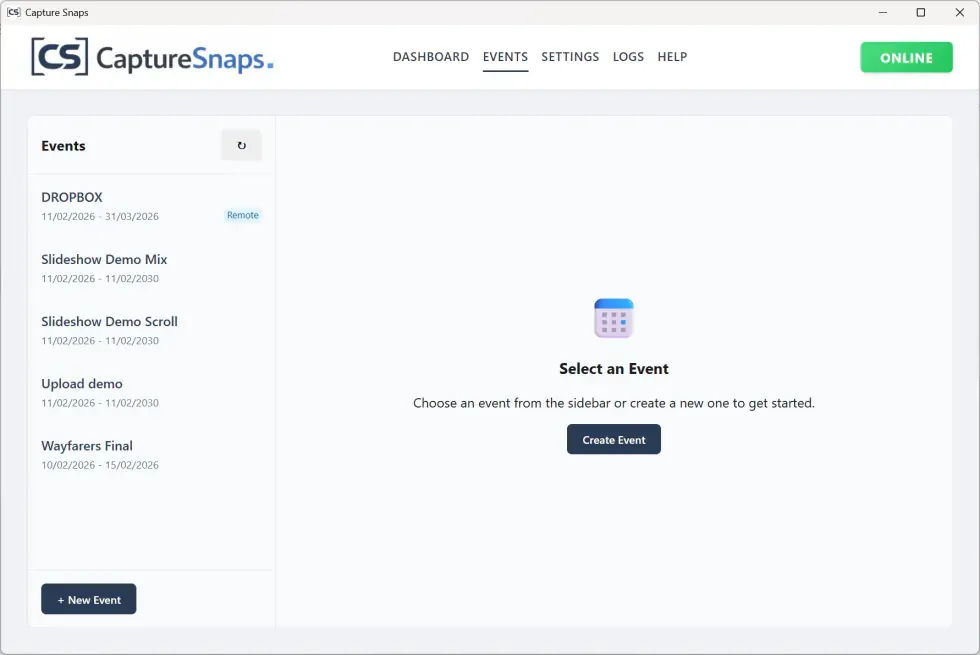
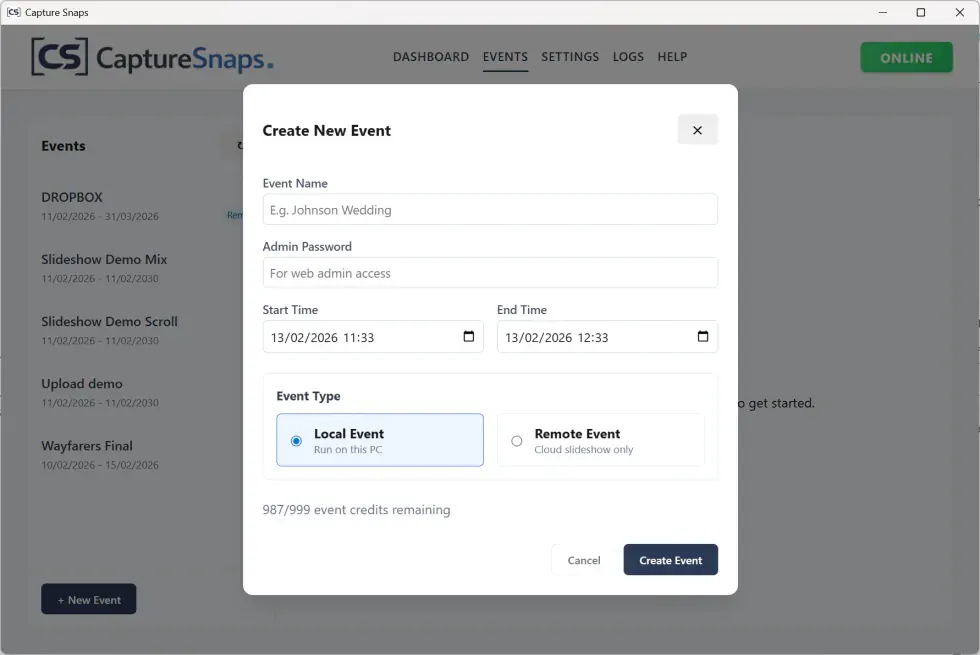
Create the event
- Open Capture Snaps and choose the option to create a new event.
- Add a clear event name and the correct date.
- Review the event code used by the public gallery and guest upload page.
- Save the event before configuring its features.
Use a recognisable name so the event is easy to identify later, particularly when several events are running in the same week.
Choose how guests take part
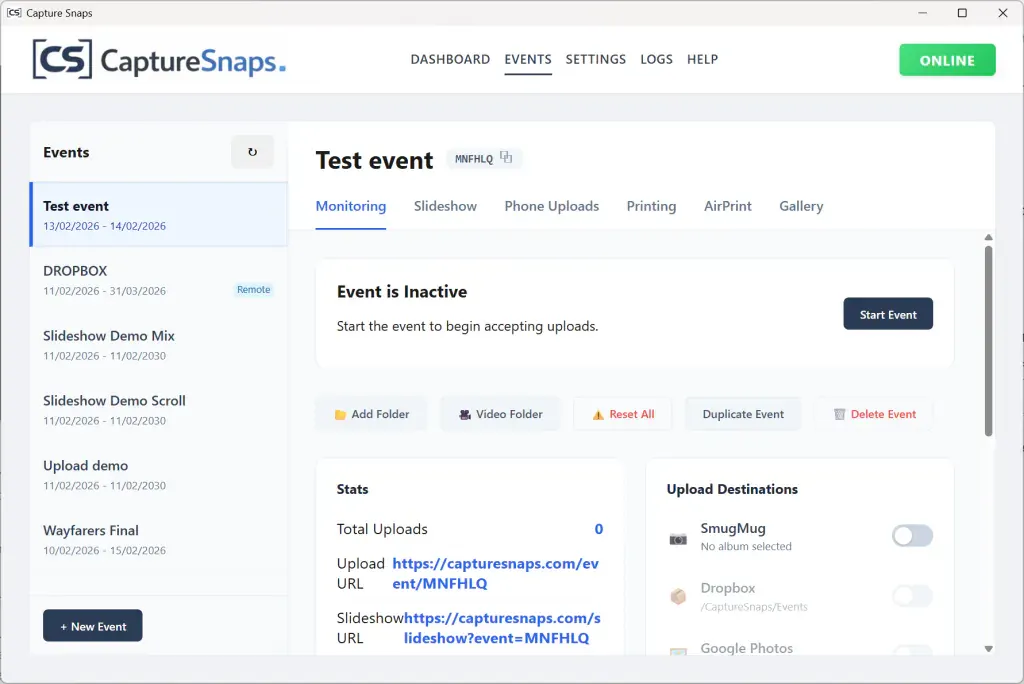
Enable the parts of the experience required for this event:
- Guest phone uploads through a QR code or link
- Booth images from one or more watch folders
- A live slideshow
- Optional live printing
- Moderation before images appear publicly
- Automatic cloud or gallery delivery
You can run phone uploads on their own or combine them with a photo booth.
Test the complete journey
Open the guest link on a phone, upload a test image and confirm that it appears in Capture Snaps. If moderation is enabled, approve it before checking the slideshow and print output.
Do this before sharing the QR code with guests. A short test confirms that the event code, network, screen and output settings all point to the correct event.
Email james@capturesnaps.com and we’ll help you get sorted.