
QR codes
Last reviewed: 14 August 2026 · Documentation version: 1.0 · Applies to: Current Capture Snaps release
The event QR code opens the guest upload page on a phone. Guests do not need to create an account before sending a photo.
Prepare the code
Create or open the event, then use its guest upload link to produce the QR code shown on screens, signs or printed material.
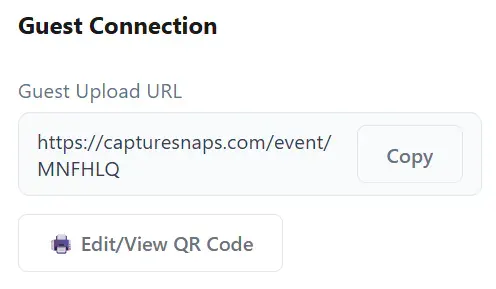
Before publishing it:
- Scan the code using a phone that is not signed into the event computer.
- Confirm the correct event name or branding appears.
- Upload a test image.
- Check moderation, slideshow and print behaviour.
- Remove the test image if necessary.
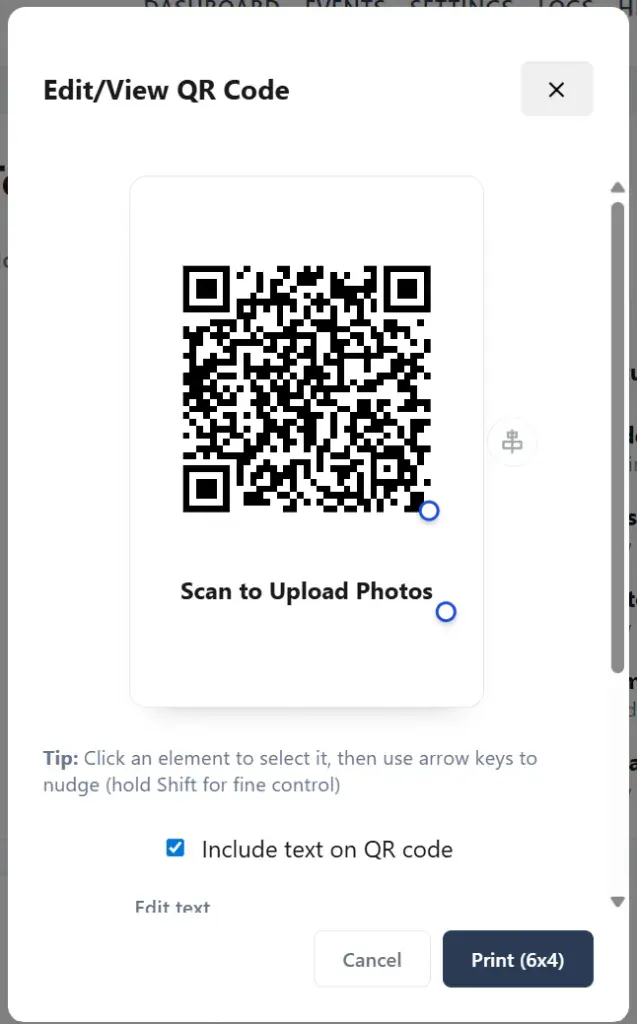
Make it easy to scan
- Display the code at a comfortable height.
- Leave clear white space around it.
- Avoid placing it over a busy image.
- Make it large enough for the expected viewing distance.
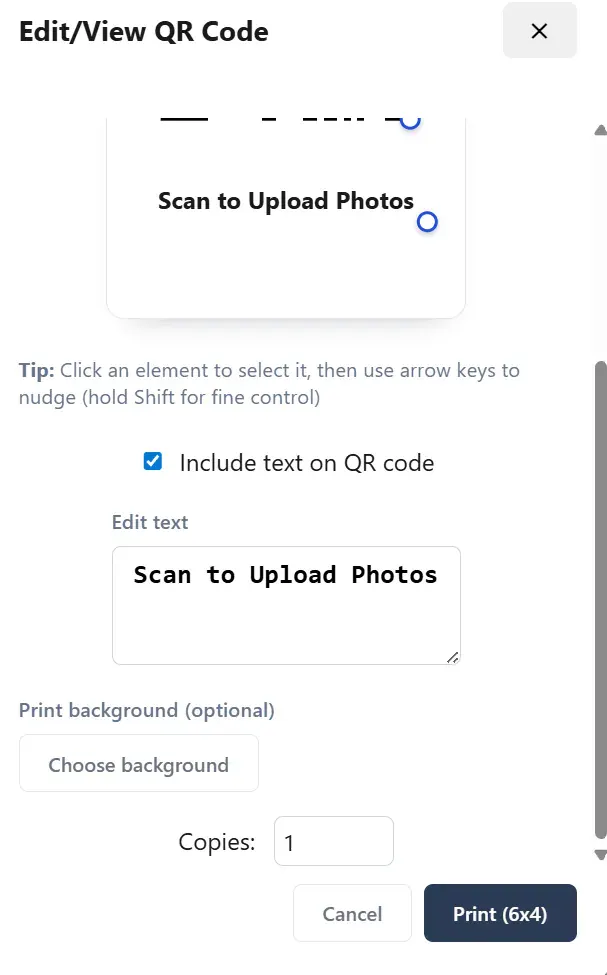
- Include a short instruction such as “Scan to add your photo”.
- Keep the direct link available as an alternative.
Control what goes live
Operators can enable approval before guest images appear. Depending on the event setup, guests may also be offered background removal or filters. You can remove an image or block a device if inappropriate content is submitted.
If the code opens the wrong event, replace every displayed copy after correcting the event link.
Still need help?
Email james@capturesnaps.com and we’ll help you get sorted.