
Upload destinations and cloud sync status
Last reviewed: 18 August 2026 · Documentation version: 1.0 · Applies to: Current Capture Snaps release
Capture Snaps can deliver event media to its managed storage and optional connected services. Available integrations include SmugMug and Dropbox.
Before the event
- Connect only the services required for that event.
- Confirm the destination album or folder.
- Upload a test image.
- Check that the image appears in the expected account.
- Remove the test if it should not remain in the customer gallery.
SmugMug
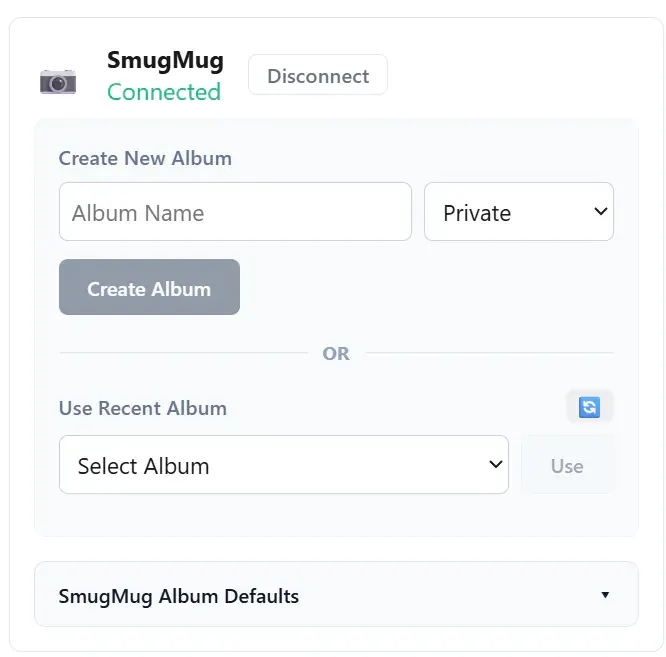
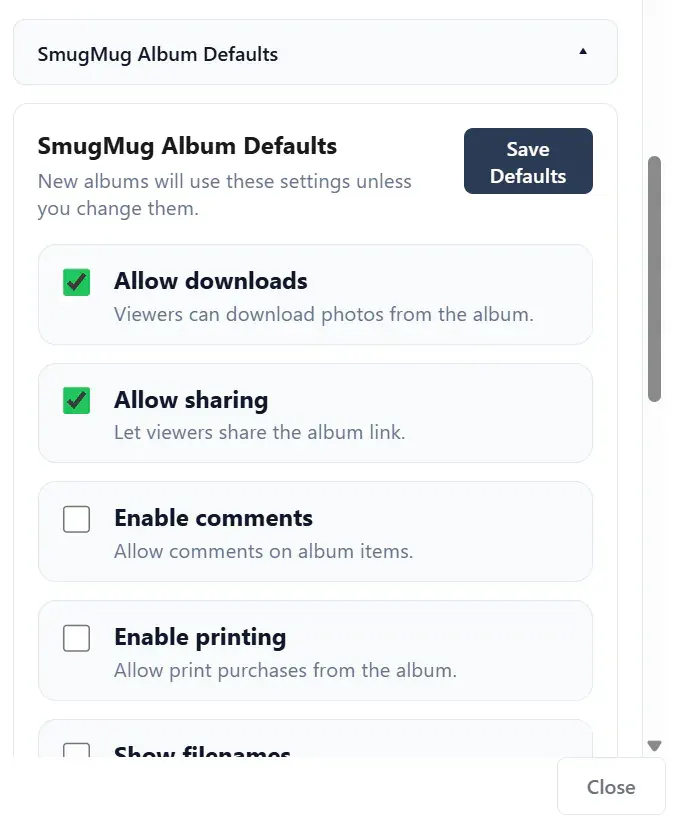
Connect SmugMug, choose whether to create a new album or use a recent one, then review the album defaults before the event.
Dropbox
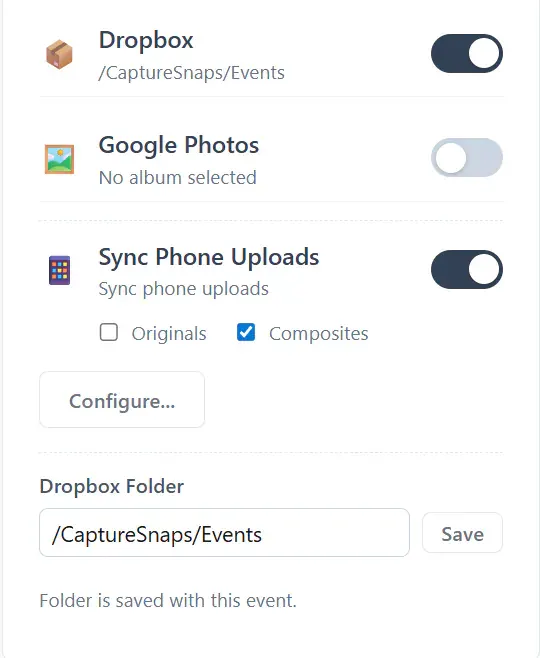
For Dropbox, confirm the destination folder that should receive the event media.
Understanding sync status
A pending or delayed upload does not always mean the image has been lost. Capture Snaps is designed to resume uploads after connectivity returns.
If delivery remains delayed:
- Confirm that the event computer is online.
- Check that the integration is still connected.
- Confirm the destination service is available.
- Review the event’s selected destination.
- Allow outstanding items to finish before closing down the event computer.
Disconnecting an integration removes the credentials used by Capture Snaps but does not automatically remove media already synced to the third-party provider.
The application header shows whether Capture Snaps is currently online. Check this status before diagnosing a delayed destination.

Email james@capturesnaps.com and we’ll help you get sorted.