
Manage the gallery and moderation queue
Last reviewed: 18 August 2026 · Documentation version: 1.1 · Applies to: Capture Snaps 3.9.32
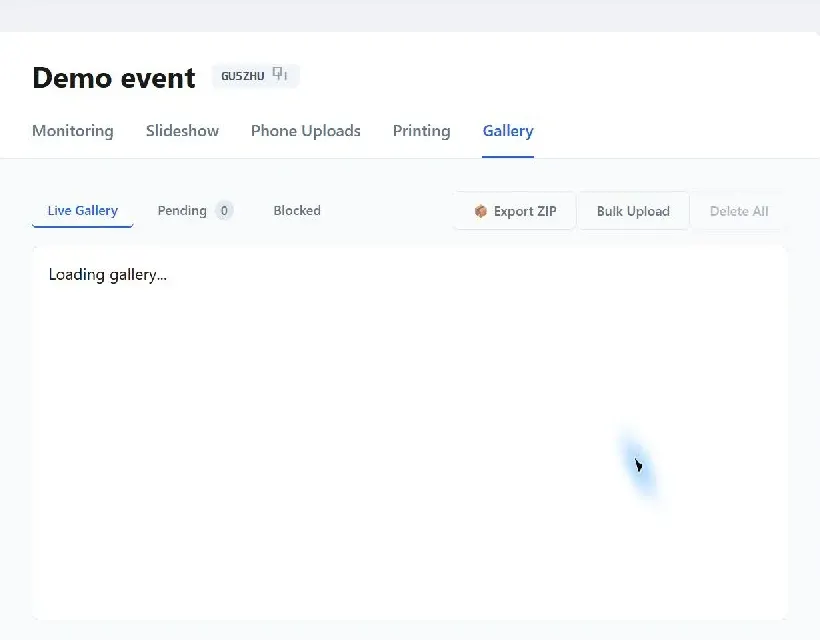
Open an event and select Gallery. The gallery separates content into Live Gallery, Pending and Blocked so an operator can decide what guests and displays are allowed to show.
Review incoming images
- Live Gallery contains approved content that can appear in the public gallery and slideshow.
- Pending contains images waiting for an operator decision when moderation or a safety check is enabled.
- Blocked contains rejected or automatically blocked content.
For each pending item, inspect the full image before selecting Make live or Reject. Rejecting keeps inappropriate content away from guest-facing views. Delete an item when it should not be retained.
Manage repeat misuse
When the same device submits unsuitable content, block that device from the item controls. If the decision was made in error, restore the image or unblock the device from the blocked view.
Operational actions
From the gallery you can also:
- Reprint an approved image
- Bulk upload existing event media
- Export the event gallery as a ZIP file
- Delete all event images
Bulk deletion is permanent. Export anything required for client delivery before using Delete All.
During a live event, keep the Pending count visible and agree who is responsible for moderation. If nothing appears in Live Gallery, first check whether new uploads are waiting in Pending or Blocked.
Email james@capturesnaps.com and we’ll help you get sorted.