
Configure printing and manage the print queue
Last reviewed: 18 August 2026 · Documentation version: 1.1 · Applies to: Capture Snaps 3.9.32
Open an event and select Printing. Printing is handled by the operator device and the printers configured in Capture Snaps.
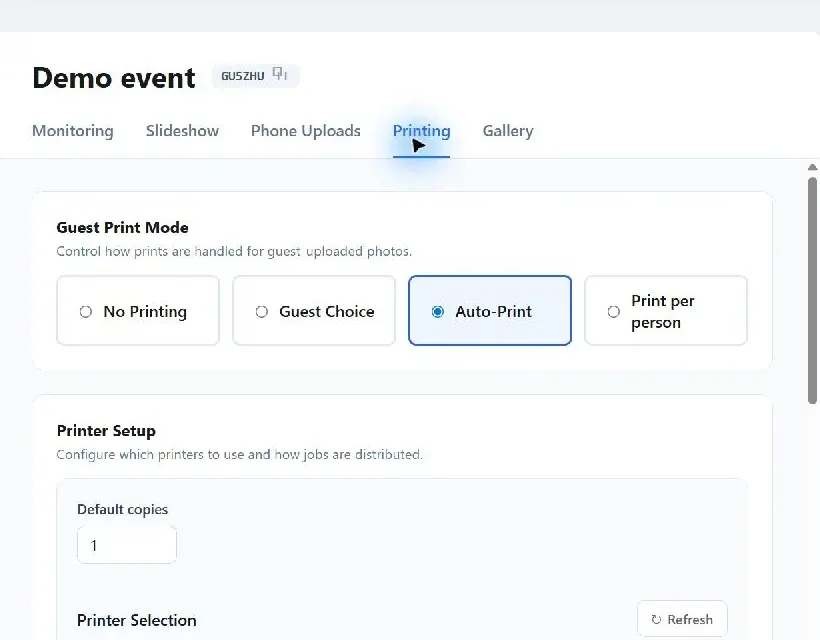
Select a guest print mode
- No Printing — accept uploads without creating print jobs.
- Guest Choice — let the guest decide whether to print.
- Auto-Print — automatically create a print job for each eligible guest upload.
- Print per person — use the guest's party size to determine the required copies.
Set Default copies for ordinary jobs. When using guest choice or party-size controls, review the fallback copy count so an incomplete guest selection cannot create an unexpected result.
Choose printers
Refresh the printer list, select the printers available to the event, and run a test before guests arrive. With more than one printer, use Round Robin to distribute jobs between them.
For a multi-device setup, only the device assigned the Operator role should handle printing. Viewer devices can run a slideshow or browse the gallery without producing duplicate jobs.
Monitor and recover jobs
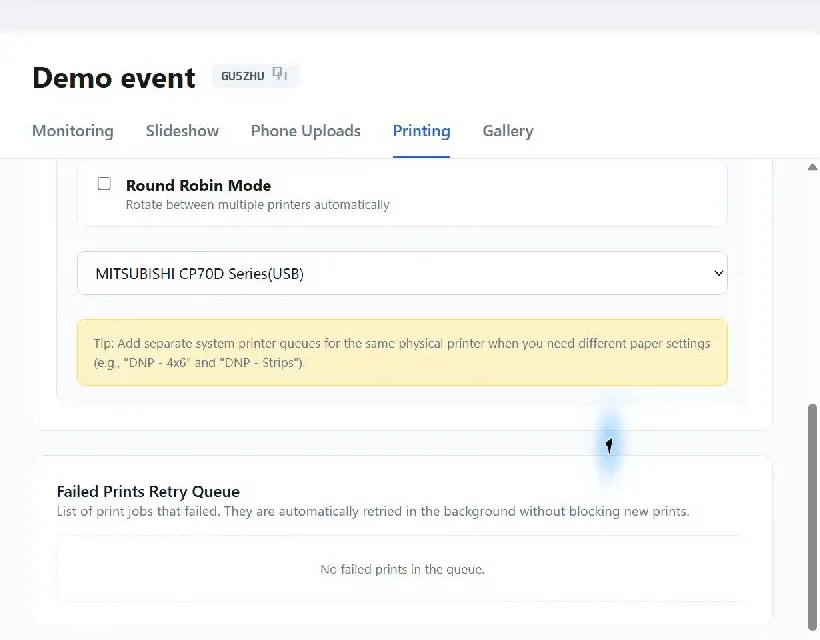
Keep the print queue visible during the event. Failed jobs remain available for retry, and Capture Snaps will attempt to recover temporary failures. Before retrying manually:
- Confirm the printer is online and has media.
- Check for an existing physical print to avoid a duplicate.
- Confirm the correct printer is selected.
- Retry the failed job from the queue.
Use the Gallery's reprint action when a specific approved image needs another copy.
Email james@capturesnaps.com and we’ll help you get sorted.