
Automate an event
Last reviewed: 18 August 2026 · Documentation version: 1.1 · Applies to: Capture Snaps 3.9.32
Capture Snaps uses the event start date, end date and timezone to control its scheduled lifecycle. Enter these details carefully when creating or editing an event.
Automatic start and stop
At the scheduled start, the event can become active and begin its configured monitoring workflow. At the scheduled end, it stops accepting the event as active work.
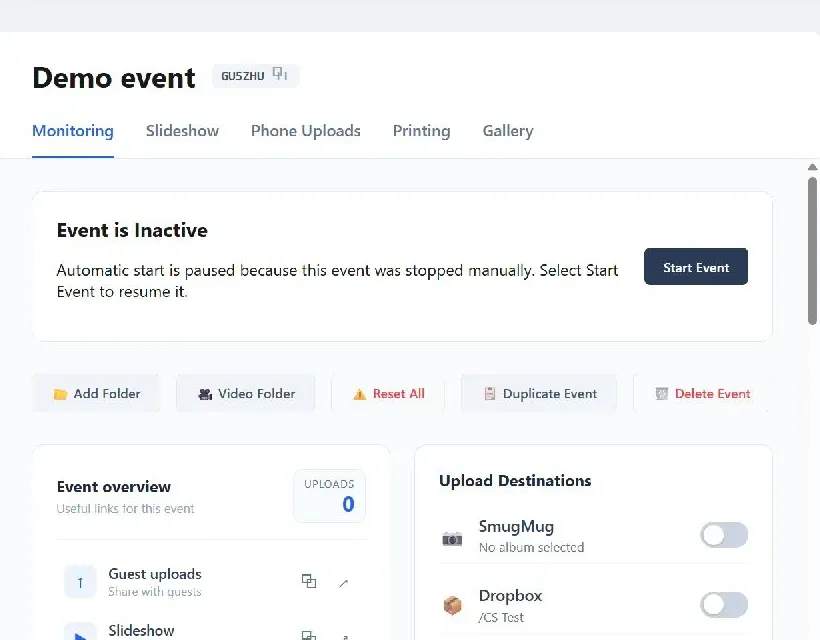
If an operator manually stops the event, automatic start is paused for that event. Select Start Event to resume it. This prevents a deliberately stopped event from restarting unexpectedly.
Before relying on automation:
- Confirm the event timezone.
- Check the start and end dates, including multi-day bookings.
- Add and test watched folders.
- Configure destinations, guest uploads, slideshow and printing.
- Leave the operator computer running and connected.
Dashboard visibility
Use Hide from Dashboard for test, remote or long-running events that should not occupy the main calendar and overview lists. Hiding an event does not delete it or disable its configuration.
Duplicating an event copies its configuration into a new event. Review dates, codes, destinations and client details on the copy before activating it. Creating a duplicate may use an event credit under the applicable plan.
Retention automation
Capture Snaps automatically deletes the event and associated managed cloud media 60 days after the event end date. The dashboard can help identify events approaching deletion, but complete client delivery and exports without relying on a last-day reminder.
Files already synced to third-party services are not removed by the Capture Snaps event deletion process.
Email james@capturesnaps.com and we’ll help you get sorted.