
Configure an event slideshow
Last reviewed: 18 August 2026 · Documentation version: 1.1 · Applies to: Capture Snaps 3.9.32
Open an event and select Slideshow. Use Local Window for a display connected to the operator computer, or Cast to TV / Browser when the slideshow will run in a browser on another display.
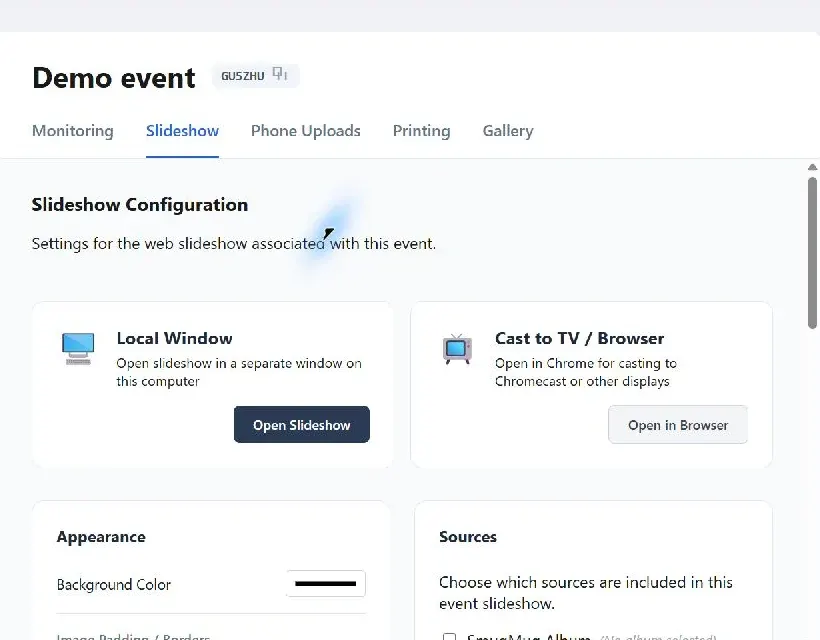
Select what appears
Choose the sources included in the event slideshow. These can include the active SmugMug album, watched folders and phone uploads. Phone uploads can use originals or processed composites, depending on the event workflow.
Only include a source after confirming its moderation behaviour. If approval is required, pending or blocked items should not be treated as live content.
Set the appearance and motion
Configure the background colour, border treatment and the transition or layout style. Available styles include individual slides, cross-fade, grid fade, masonry, continuous scroll and mixed layouts.
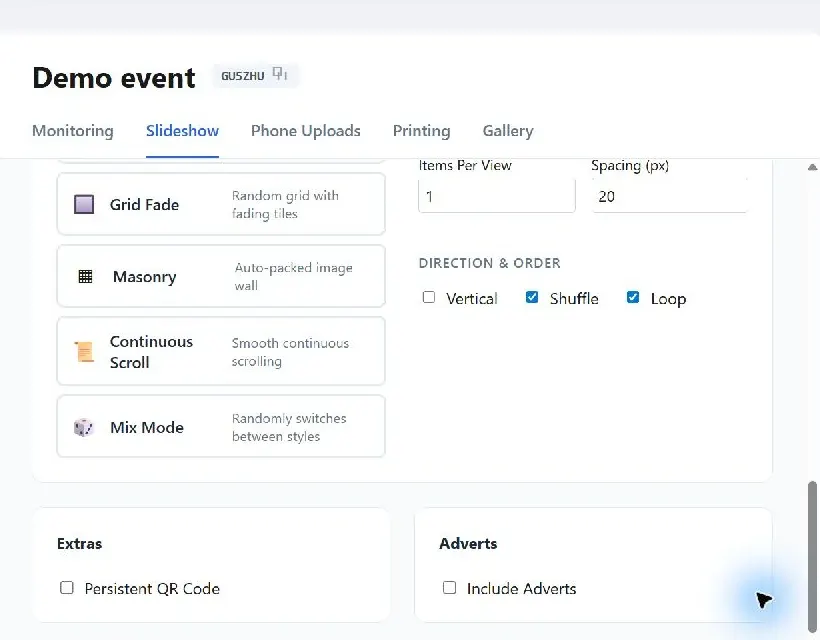
Depending on the selected style, adjust:
- Time on screen and transition speed
- Items per view and spacing
- Vertical or horizontal movement
- Shuffle and loop behaviour
- Persistent event QR code
- Advert or sponsor slides
Test the complete loop
Open the slideshow on the intended display and let it complete at least one full loop. Check cropped images, portrait images, animated content, adverts and the QR code from the expected viewing distance. Re-test after changing the display resolution or layout style.
Email james@capturesnaps.com and we’ll help you get sorted.