
Watch Folders
Last reviewed: 14 August 2026 · Documentation version: 1.0 · Applies to: Current Capture Snaps release
A watch folder lets Capture Snaps detect new images created by photo booth software and bring them into the event automatically.

Choose the correct folder
Select the folder where the booth software saves its finished guest images. Use the final output folder rather than a temporary working or thumbnail folder.
For the most reliable setup:
- Use a folder on the event computer where possible.
- Confirm the booth software can write to it.
- Avoid changing the folder name after configuring the event.
- Keep test events separate from live output folders.
Test the connection
- Start the booth software and Capture Snaps.
- Open the correct Capture Snaps event.
- Create a test booth image.
- Confirm the file appears in the watch folder.
- Confirm Capture Snaps receives it once.
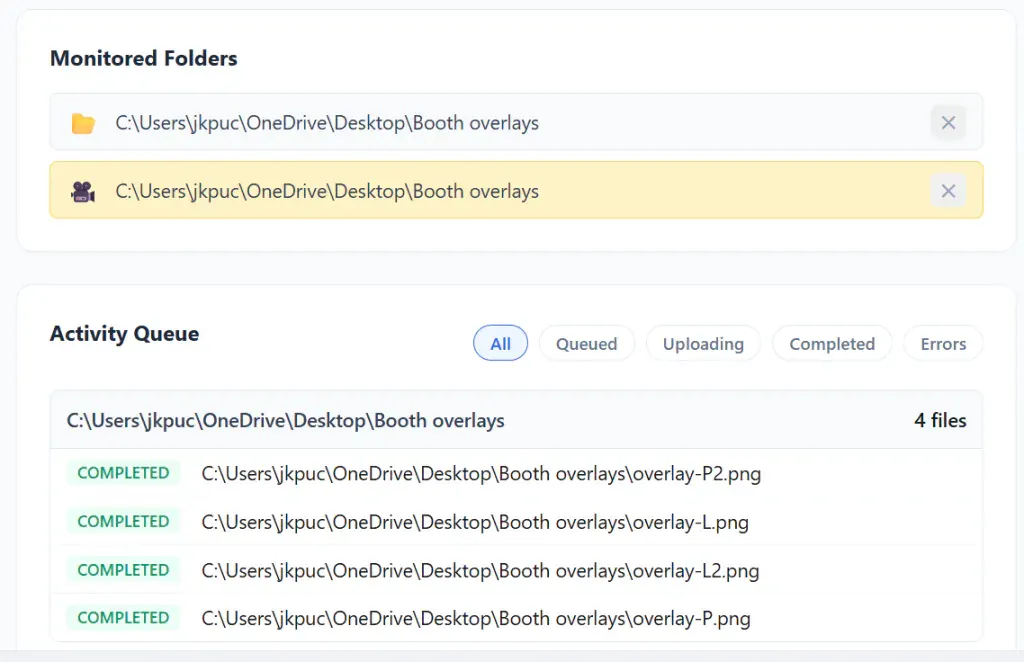
If no image appears, check the folder path and the booth software’s output setting. If the image appears more than once, confirm that overlapping folders are not being watched.
After changing booth software or moving the event to another computer, repeat this test before guests arrive.
Email james@capturesnaps.com and we’ll help you get sorted.