
Configure guest uploads
Last reviewed: 18 August 2026 · Documentation version: 1.1 · Applies to: Capture Snaps 3.9.32
Open an event and select Phone Uploads to control the experience guests see after scanning the event QR code.
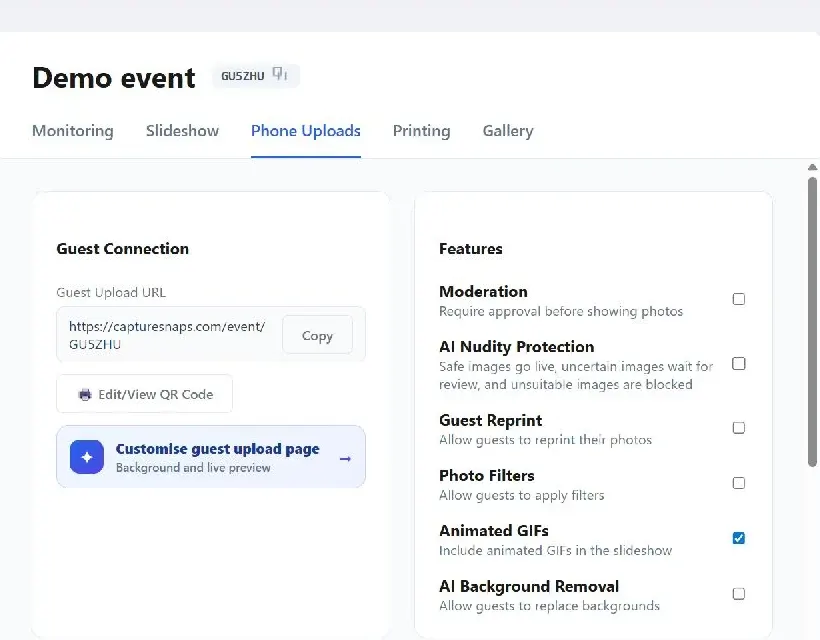
Choose the guest features
The available controls include:
- Moderation — require approval before a guest photo appears publicly.
- AI Nudity Protection — send uncertain images for review and block unsuitable images.
- Guest Reprint — let a guest request another print of their uploaded photo.
- Photo Filters — offer filters before submission.
- Animated GIFs — include animated images in the slideshow.
- AI Background Removal — let guests replace the background of an image.
Only enable features you have tested with the event's slideshow, moderation and printing settings.
Customise the upload page
Use Customise guest upload page to set the page branding and live instructions. Keep the text short enough to read on a phone and explain clearly what happens after upload, particularly when moderation is enabled.
Test before sharing
- Copy the Guest Upload URL or open Edit/View QR Code.
- Scan the QR code from a phone that is not signed into the operator computer.
- Submit a test image using each enabled option.
- Confirm that the image enters the expected moderation state.
- Check slideshow and print behaviour.
- Remove the test image before the event begins.
If an image does not appear, check the Pending and Blocked tabs in Gallery before changing the upload configuration.
Still need help?
Email james@capturesnaps.com and we’ll help you get sorted.